An Easy Way to Start Using Google Slides

Presentation is giving of something to someone, especially as part of a formal ceremony. Whether you’re a student, a bussinessman, or a member of an organization—at some moment you’ll be needed to make a presentation. When the time comes, you’ll want to use the best tool to fulfill your needs and your budget.
Microsoft PowerPoint is one of the most popular presentation software. And it’s really done its job well, but it’s not the only option out there that you can use. You may think to look after an online presentation software, if that so Google Slides is one of the option that you should take a look.
What is Google Slides? Based on Wikipedia, Google Slides is a presentation program free web-based software offered by Google within its Google Drive service. It’s first announced in 2006 as Google Presentation and officially renamed as Google Slides in 2012.
Ok, now lets start with the tutorial how to using it.
Step 1. Browse Google Slides on Your Search Engine
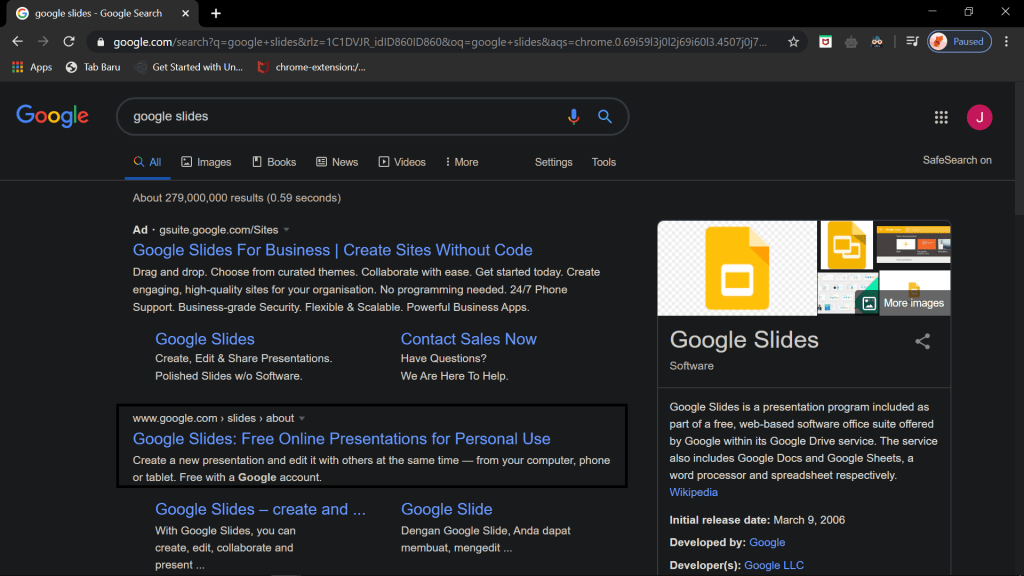
Since it’s online presentation software, all you have to do is search it through your browser and click www.google.com/slides/about.
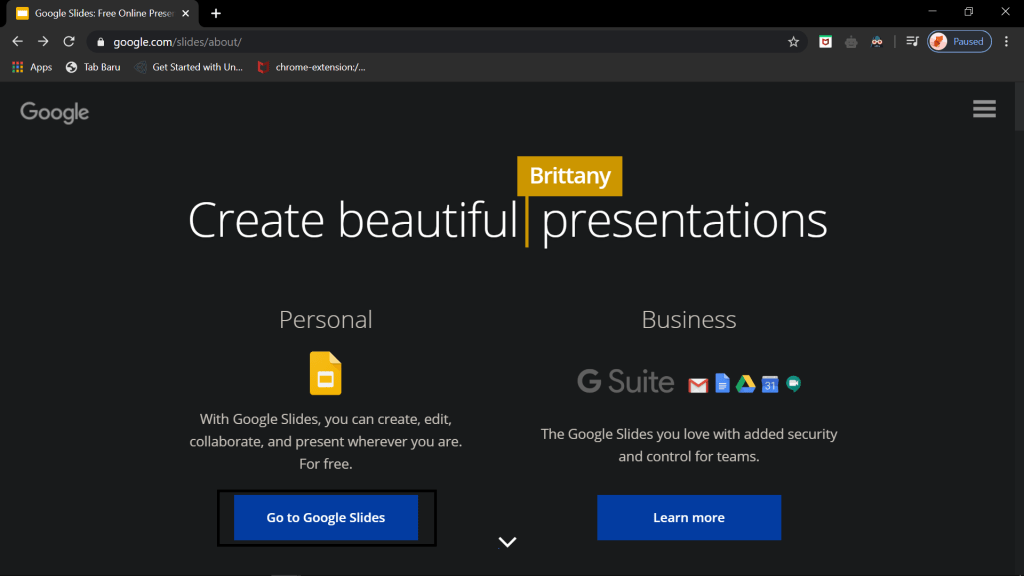
And go to Google Slides. It’s completely free—all you need is a gmail acount.
Step 2. Create a New Presentation
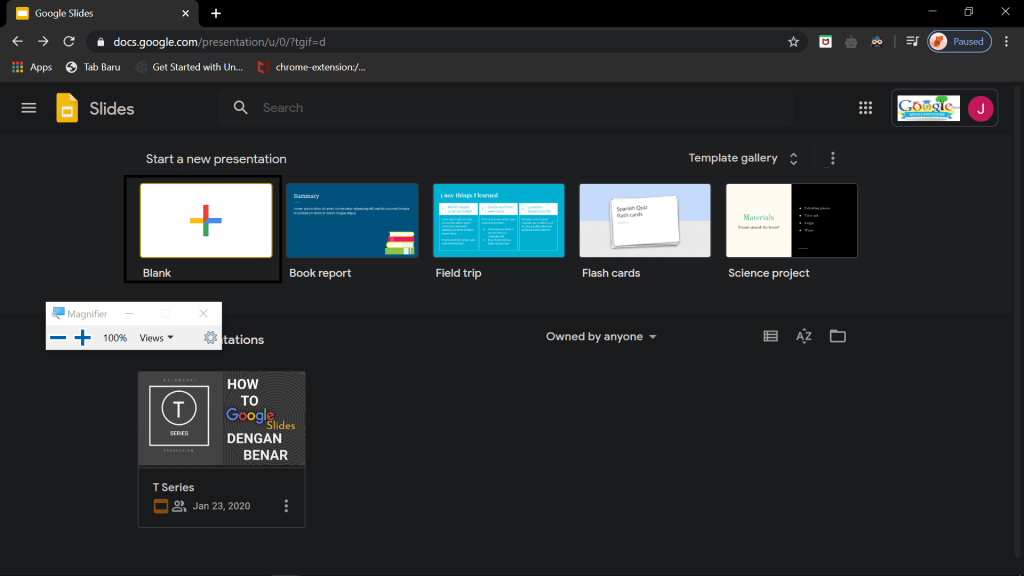
After you’ve signed in with your Google Account, create a Google presentation by click the template that you want to choose. At this time let’s click the blank.
1 . Format your Google Presentation
The first step is how you want the presentation look like. By choosing Themes at the sidebar that pops upon creating a presentation.
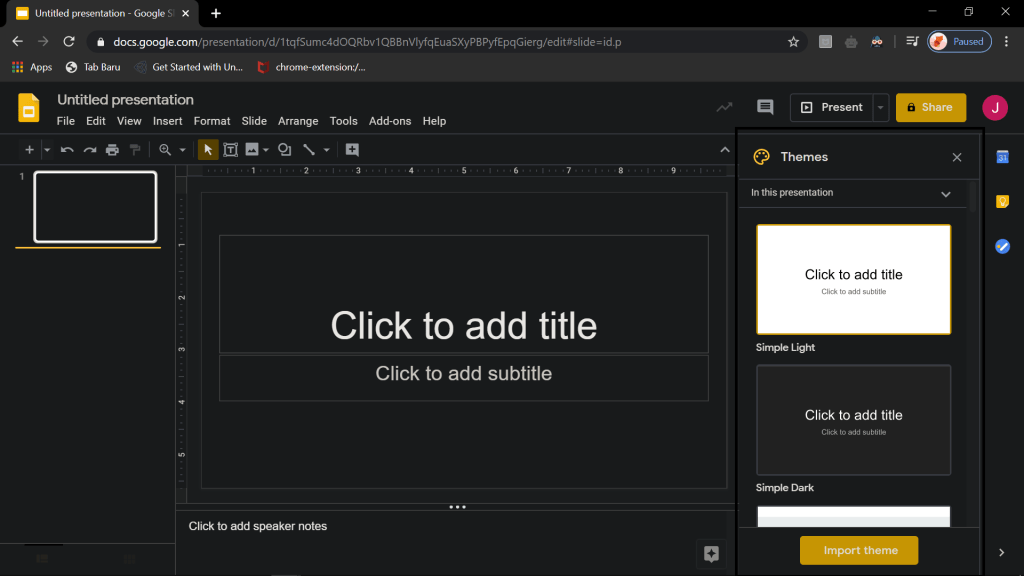
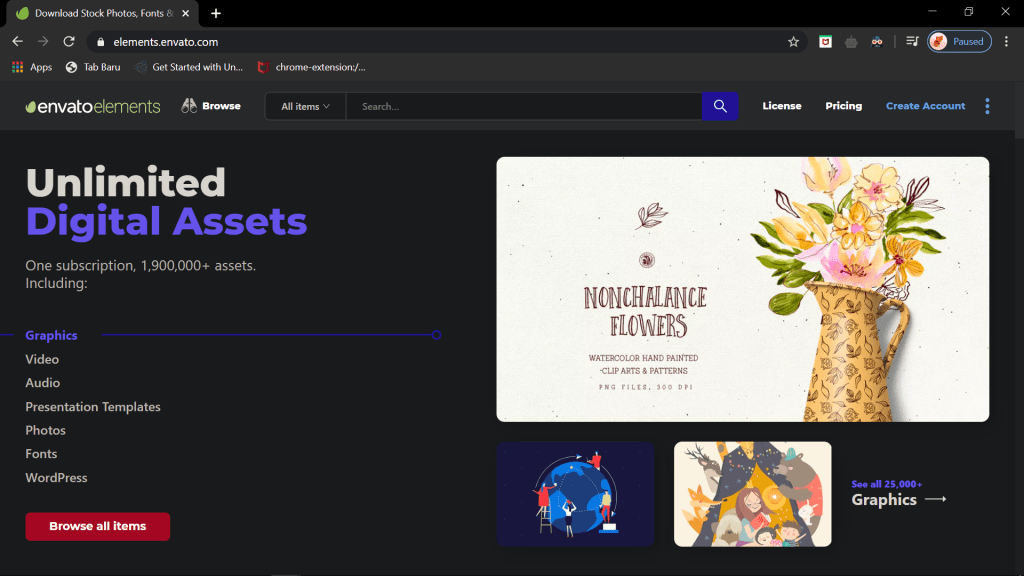
Or you can find Themes that suit your taste at Envanto Elements.
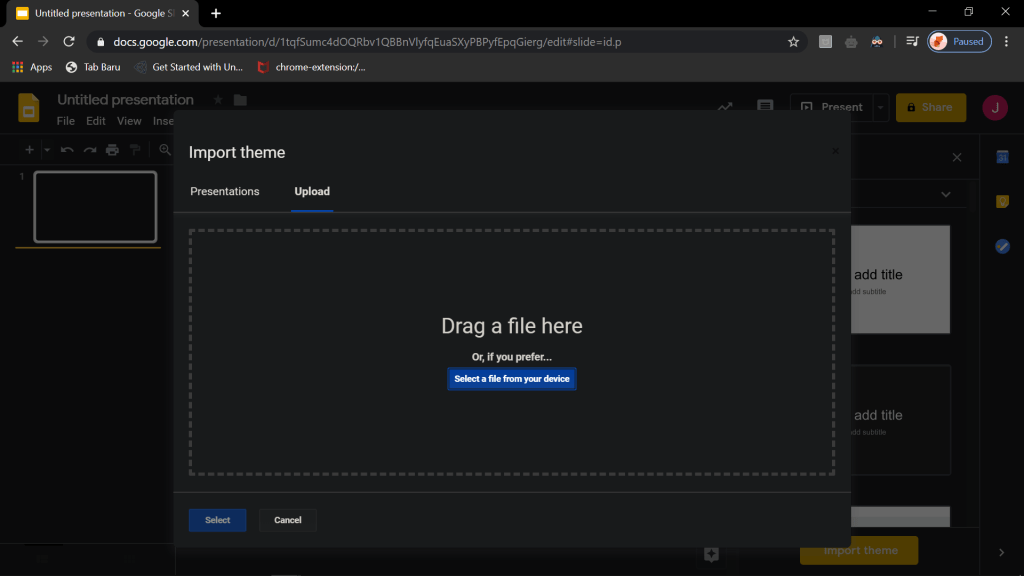
If there is nothing that suit your taste, then you can upload your own Theme by pressing Import Theme button on the launcher. You also can use Theme from previous presentation.
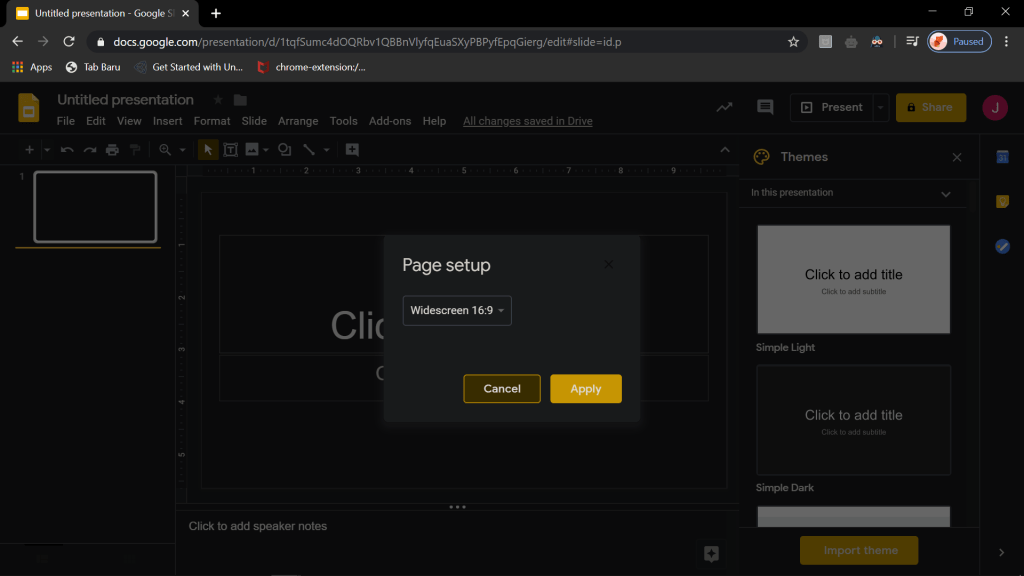
Once you’ve selected the Theme, determine the Google slides aspect ratio of your slides. Click File > Page setup, and pick the option that you need, based on the screen that you’ll be using for presentation.
Note: you can change Theme and Aspect Ratio later on, click Slide > Change
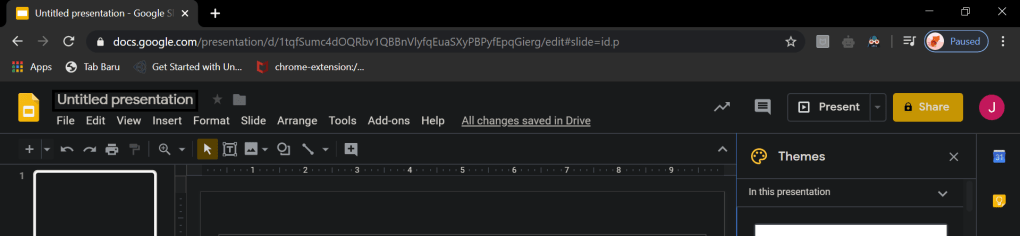
Renaming your presentation once you’ve decided the theme.
Step 3. Google Slides Features
Now, it’s time to look at how to use Google Slides tools. The left sidebar of Google Slides displays the slides that you’ve been made and the body of the screen displays the slide that you’re currently working on.
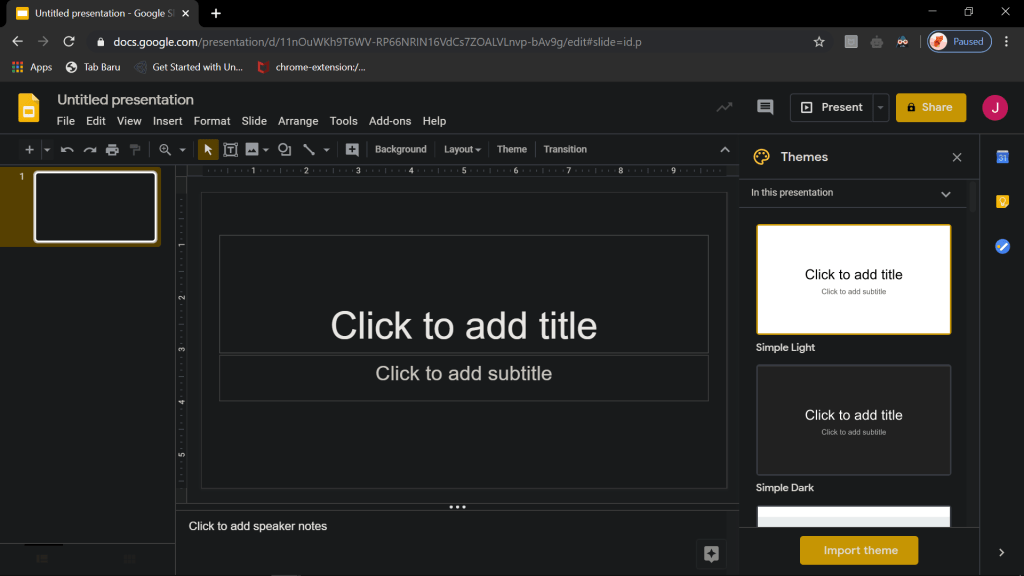
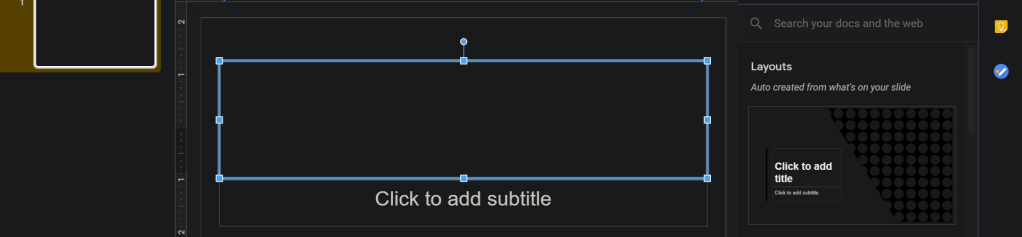
Since you want to make the first slide as title slide, to add Title just click where it says to and type the title that you want.
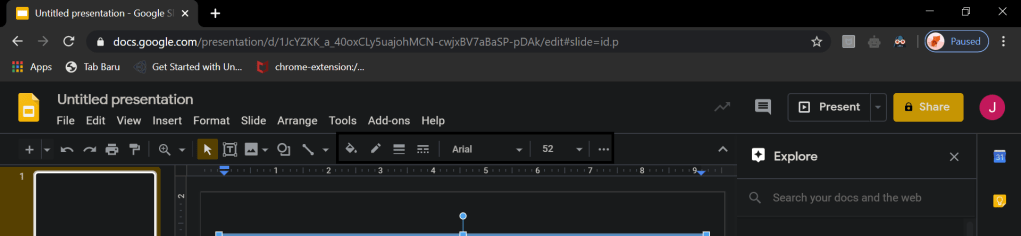
You may edit the the text appeareance, such as typeface, font size, color , and styles from the toolbar when you click the text.
1 . Add & Delete Slides
You can add more slides to your presentation, by clicking ” + “
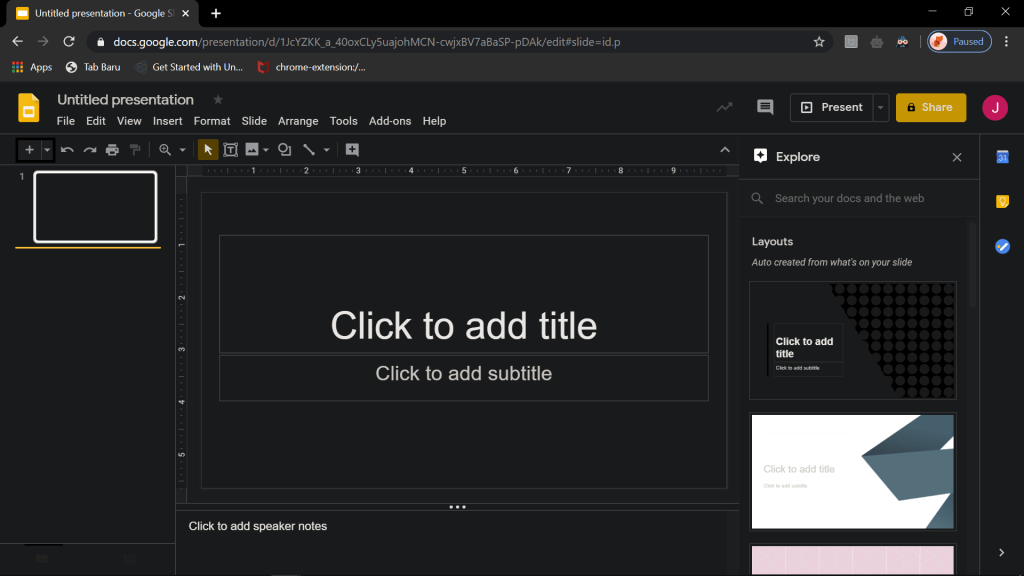
Slides may be deleted by selecting the slide and clicking Edit > Delete, or by right-clicking on the slide thumbnail and clicking Delete Slide.
2. Add Text
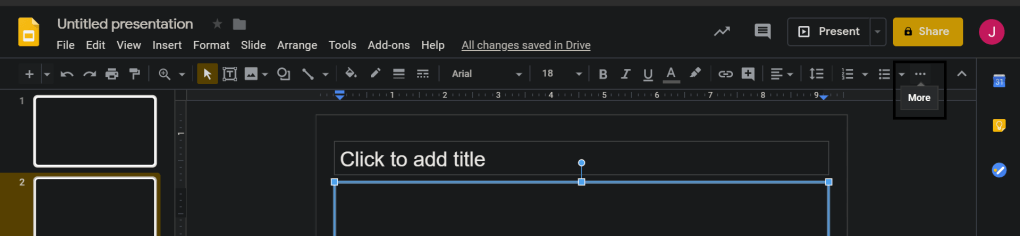
The next slide is the information slide. If you want to formating your text just click the text box and click more.
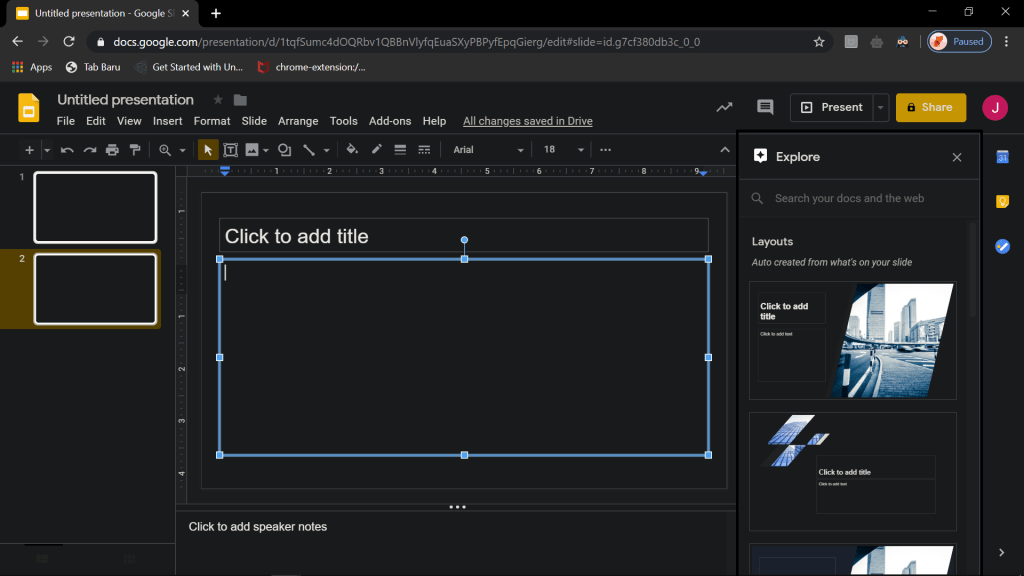
Google Slides has an in-app researching tool accessible via Tools > Explore. The Explore sidebar allows you to Google search in-app.
3 . Add Media
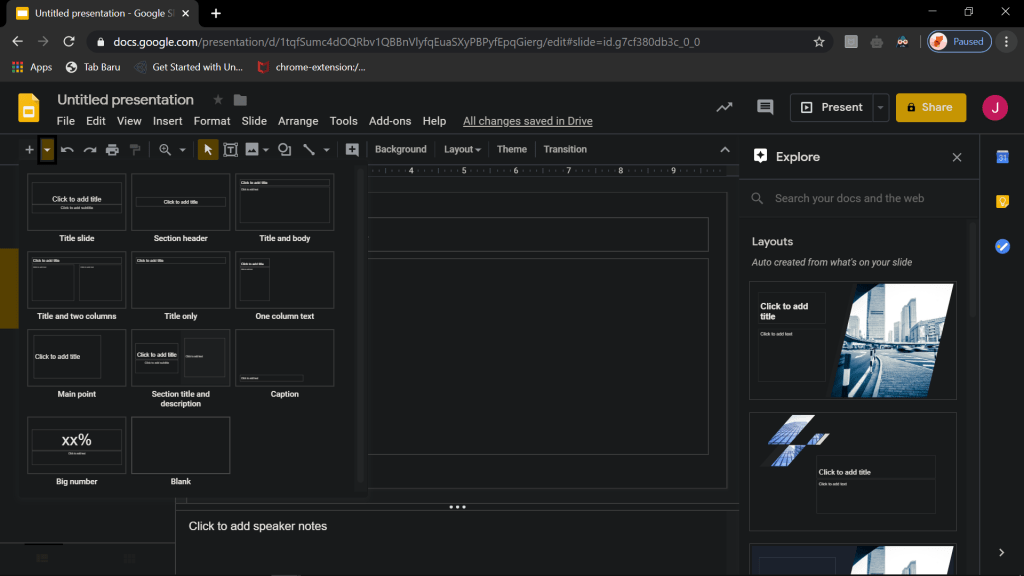
Then if you want to add media to your slide you can change the layout for for your slide since the first slide is not fit. By clicking the arrow icon next to the ” + ” icon.
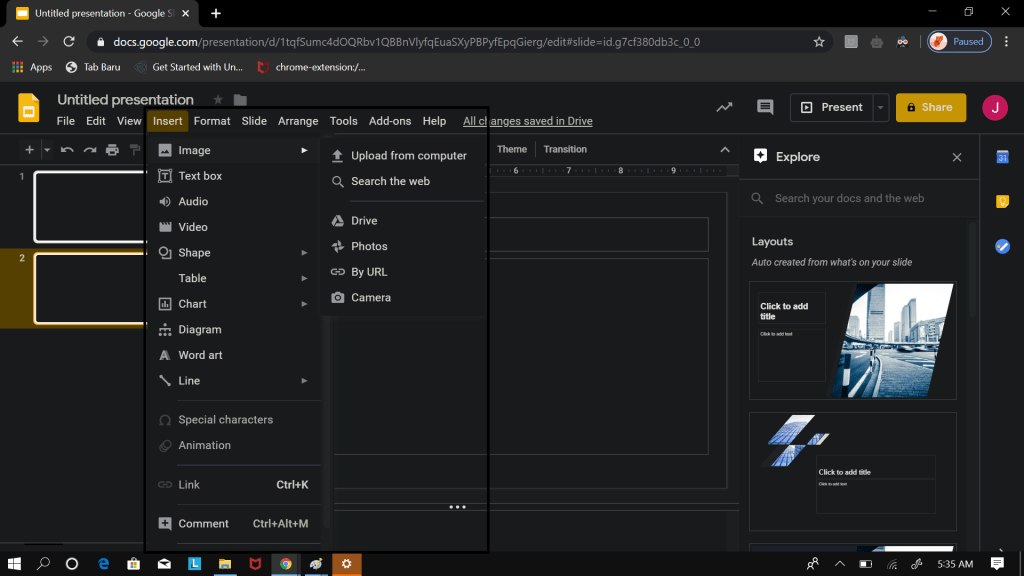
You may also add image to your slide. By clicking Insert > Image. You can upload your image from your computer, by Drive, Explore, URL, or even camera.
4 . Add Animation
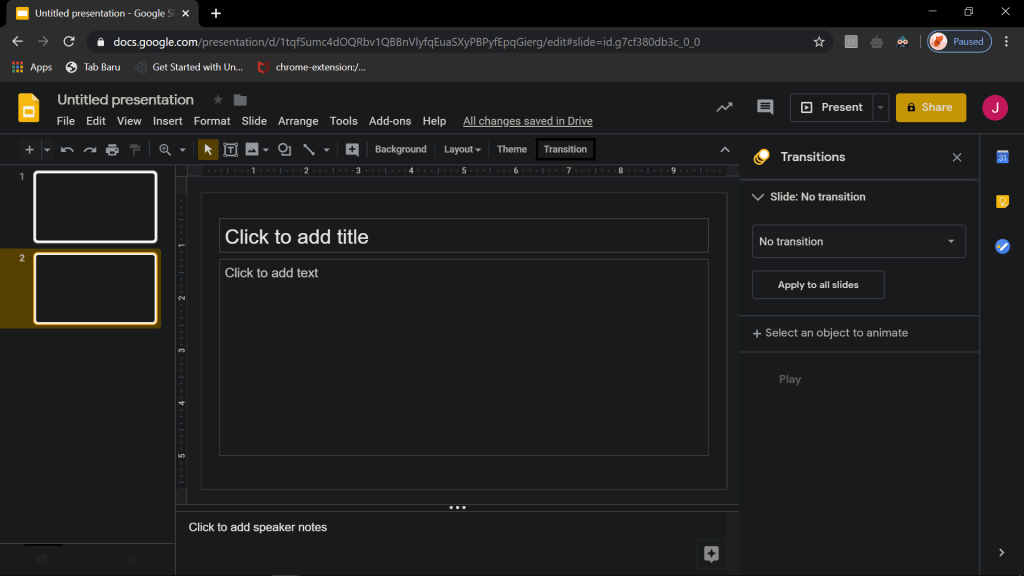
Google Slides provide you with Animation, you may apply it to slide elements or animation between slide.
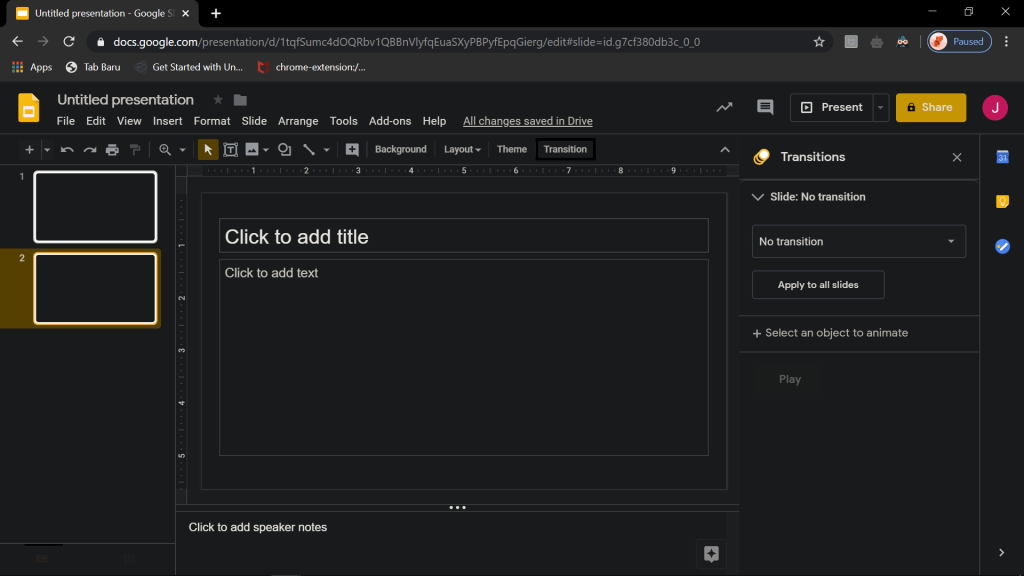
Step 4. Collaboration
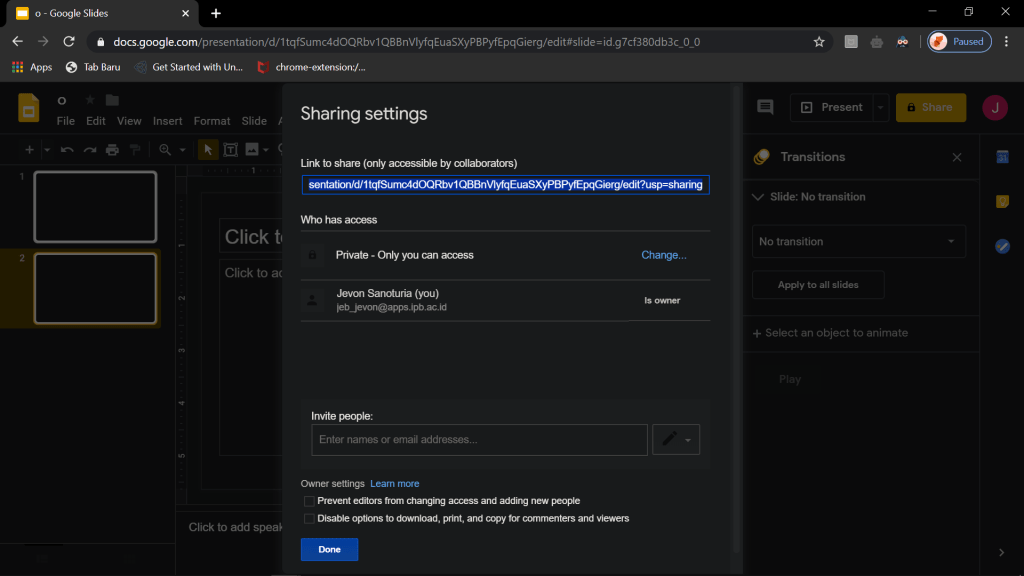
To collaborate, you can also invite people to the document your Google presentation. Click the Advanced link in the lower right of the screen to view all the sharing options. You’re able to restrict the powers of collaborators by selecting either Can view, Can comment, or Can edit options from the Can view drop-down menu.
Step 5. Present Your Google Slide
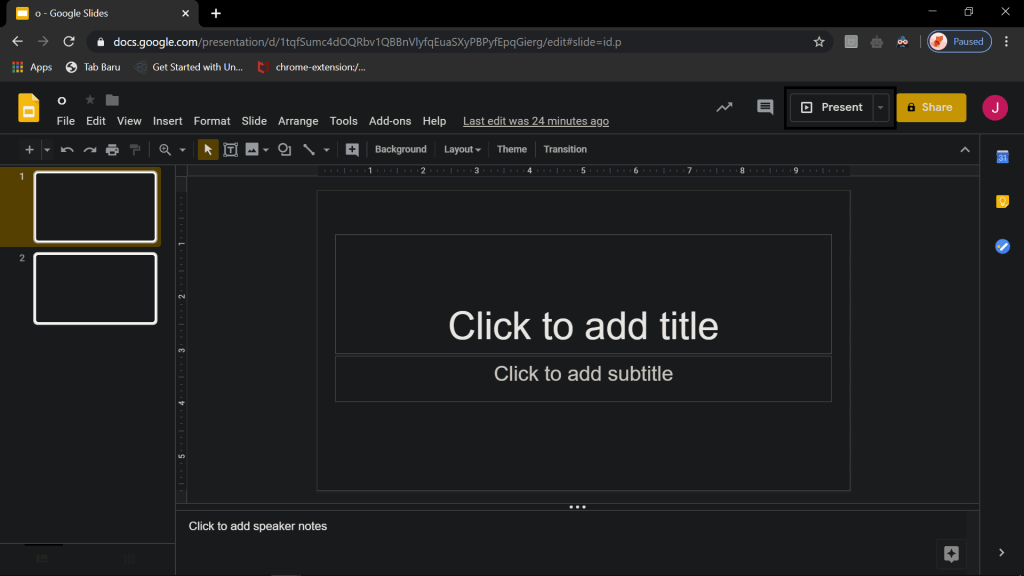
After you’ve finished your presentation, just click Present to show off your presentation.
You may export powerpoint from your Ms.PowerPoint too as a .pptx file by clicking File > Download As > Microsoft PowerPoint.
That’s all the quick guide to use Google Slides. You can navigate all the features to master it.
 looloo